A familiar feeling.
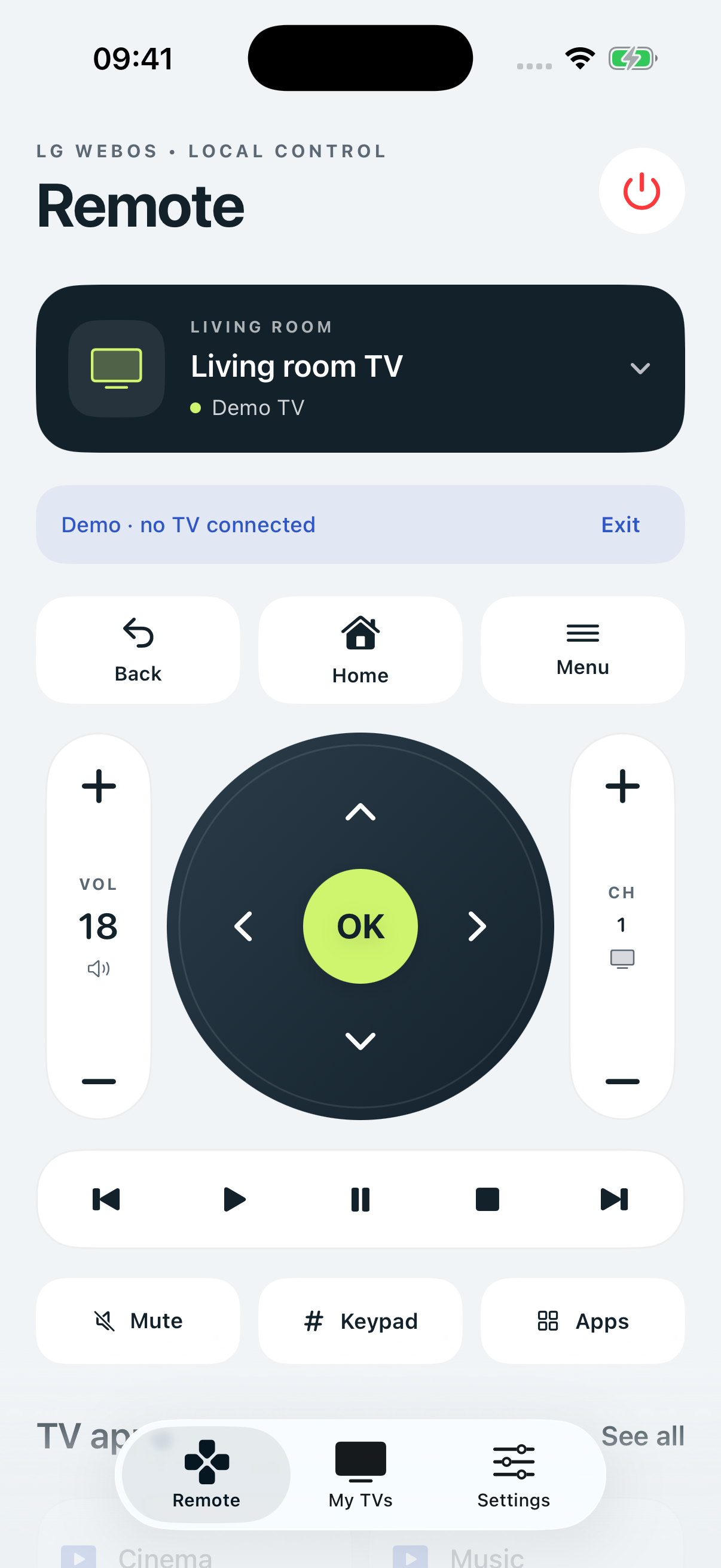
Navigation, home, back, volume, mute, channels, playback and a number pad. Available actions depend on the TV’s active input or app.
 Mobile TV Control Freeby polysign
A LITTLE CLOSER TO YOUR TV
Find your TV. Settle in. Your everyday controls, favorite TV apps and rooms, together on your iPhone.
Mobile TV Control Free connects directly to compatible LG webOS TVs on your home network. No app account. No cloud relay.
NEW IN VERSION 1.1
Navigation, home, back, volume, mute, channels, playback and a number pad. Available actions depend on the TV’s active input or app.
Save several TVs, give them room names and keep favorites close. TV app shortcuts come from the apps actually installed on the selected television.
Pairing stays in your iPhone’s Keychain. TV settings stay in protected local storage. The app includes no advertising, analytics or cloud synchronization.
Read the privacy policyGET COMFORTABLE
Start with your television switched on. The app searches for nearby LG TVs when you open My TVs.
If your TV does not appear or does not support AirPlay, choose Add TV by IP address and enter the local IPv4 address shown in its network settings.
Your TV can use Ethernet while your iPhone uses Wi-Fi. Both devices need to be reachable on the same local network.
Enable LG Connect Apps or the equivalent network remote setting. Enable AirPlay so your TV can advertise itself for discovery. Setting names vary by model and firmware.
Allow Local Network access on your iPhone. In My TVs, select your television under Nearby TVs, then approve “LG Remote App” on the TV. Use Find TVs nearby to search again.
A FEW THINGS TO KNOW
This app uses the local LG webOS TV protocol. It does not control washing machines, air conditioners or other LG appliances. Compatibility depends on the television, firmware, network and active app or input. A supported-model list will follow physical-device testing.
Nearby discovery uses Bonjour and requires the TV to advertise AirPlay. Discovery has been verified from a physical iPhone with an LG NANO869PA; testing across other models continues. Manual IP entry remains available for TVs that do not advertise themselves.
Network wake is unavailable in the current iPhone build. Switch on your TV with its physical remote before connecting.
The app pauses connections when it leaves the foreground and reconnects during active use. It does not provide scheduled or always-running home automation. Streaming services on your TV may need their own internet connection.
HERE TO HELP
For help, email georges@polysign.lu. Include your TV model, firmware, iOS version and what happened. Please do not send pairing keys or passwords.
Enable Local Network access for LG Mobile Control in iPhone Settings, and enable AirPlay on the TV. Keep both devices on the same reachable network, then tap Find TVs nearby. If the TV still does not appear, add its local IP address manually.
Turn it on with the physical remote, verify its current IP address and network remote setting, then try again. In iPhone Settings, enable local network access for LG Mobile Control. Guest Wi-Fi, network isolation and VPN routing can prevent communication.
Approval may have been removed on the TV. In My TVs, open that TV’s settings and reset its trusted connection. Verify that the address belongs to your TV before accepting a changed certificate.
Channels, media playback and metadata depend on the active input or app. HDMI-connected equipment and streaming apps can expose limited controls. The app reports an unavailable action instead of treating a queued request as success.
Use Forget TV to remove one TV and its Keychain pairing, or Reset all app data for everything stored by the app. Deleting the app alone may leave Keychain data. Local deletion does not necessarily revoke the remote on the TV itself.